Voting event settings
Every switch in Voting Event Settings and what it does.
Open the event and select Voting Event Settings. You need to be the Owner or a Manager.
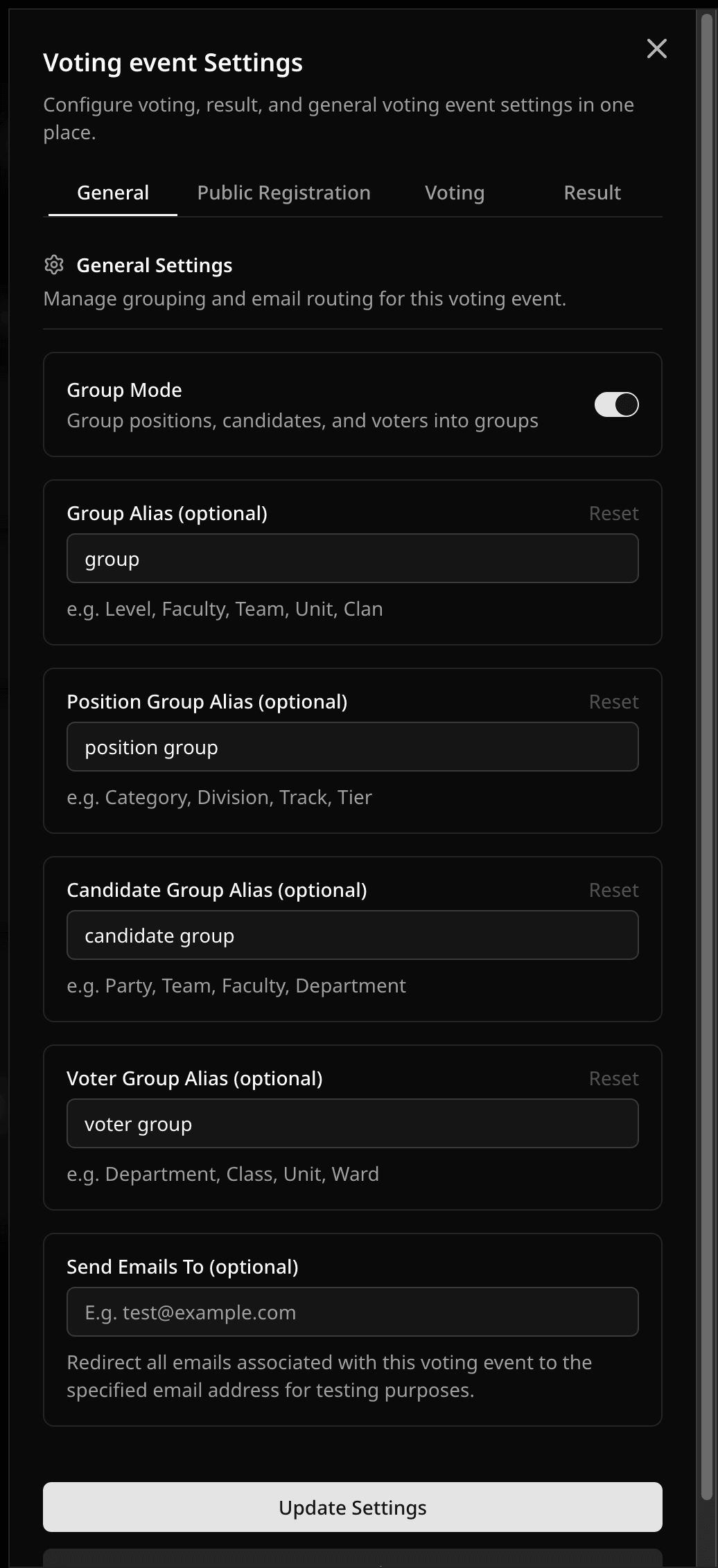
General
- Group Mode adds a Groups tab so you can organize positions, candidates, and voters. See Group Mode.
- Send Emails To sends participant and official emails to one test address instead of the real recipients. Clear it before you go live. Voting-started and export emails ignore it.
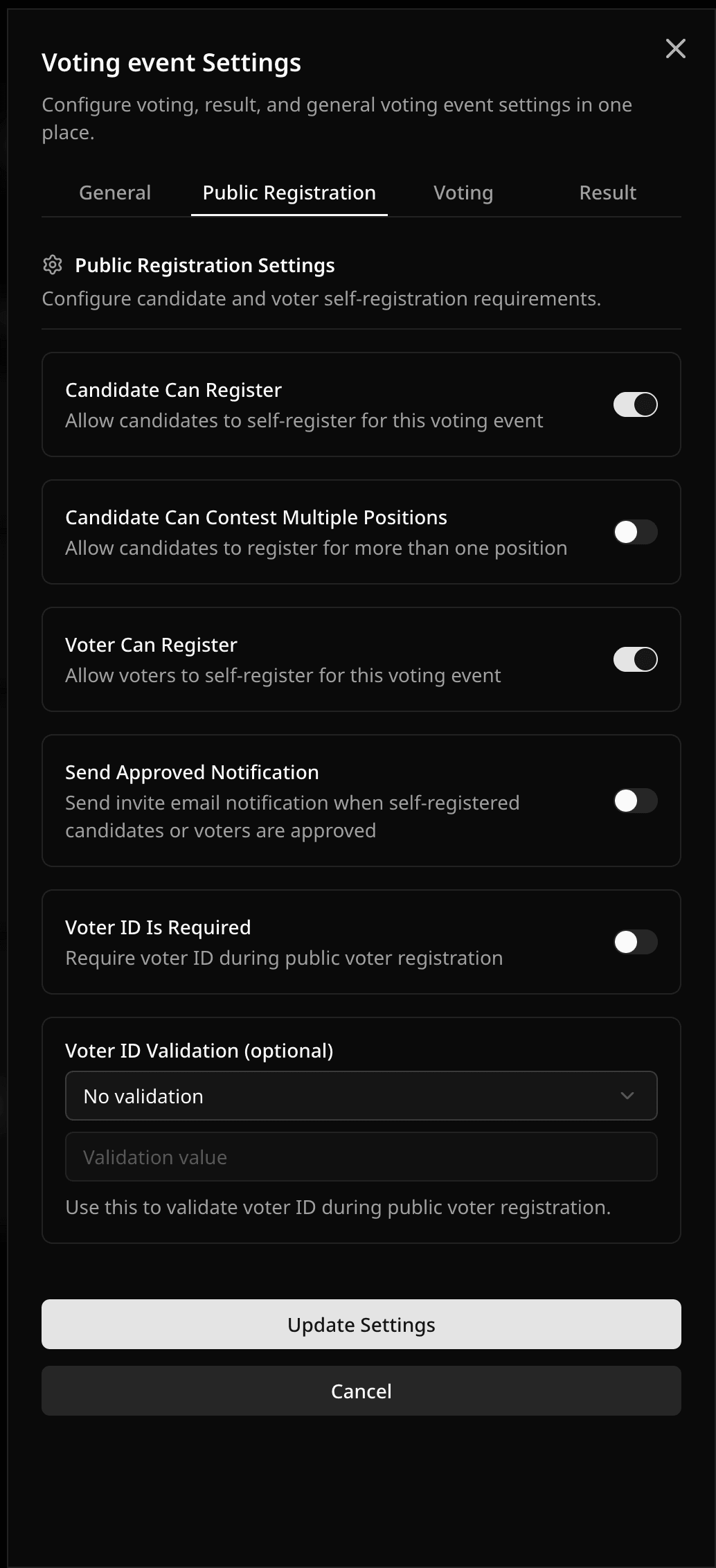
Public registration
- Candidate Can Register lets candidates apply through a public link. You still approve them. You can let them pick more than one position and email them when approved.
- Voter Can Register (elections only) lets voters sign up through a public link. You still approve them. You can require a Voter ID that must contain, start with, or end with a pattern.
- Registration closing time stops registration before voting starts. It must be earlier than the start time. Without one, registration closes when voting starts.
See Self-registration.
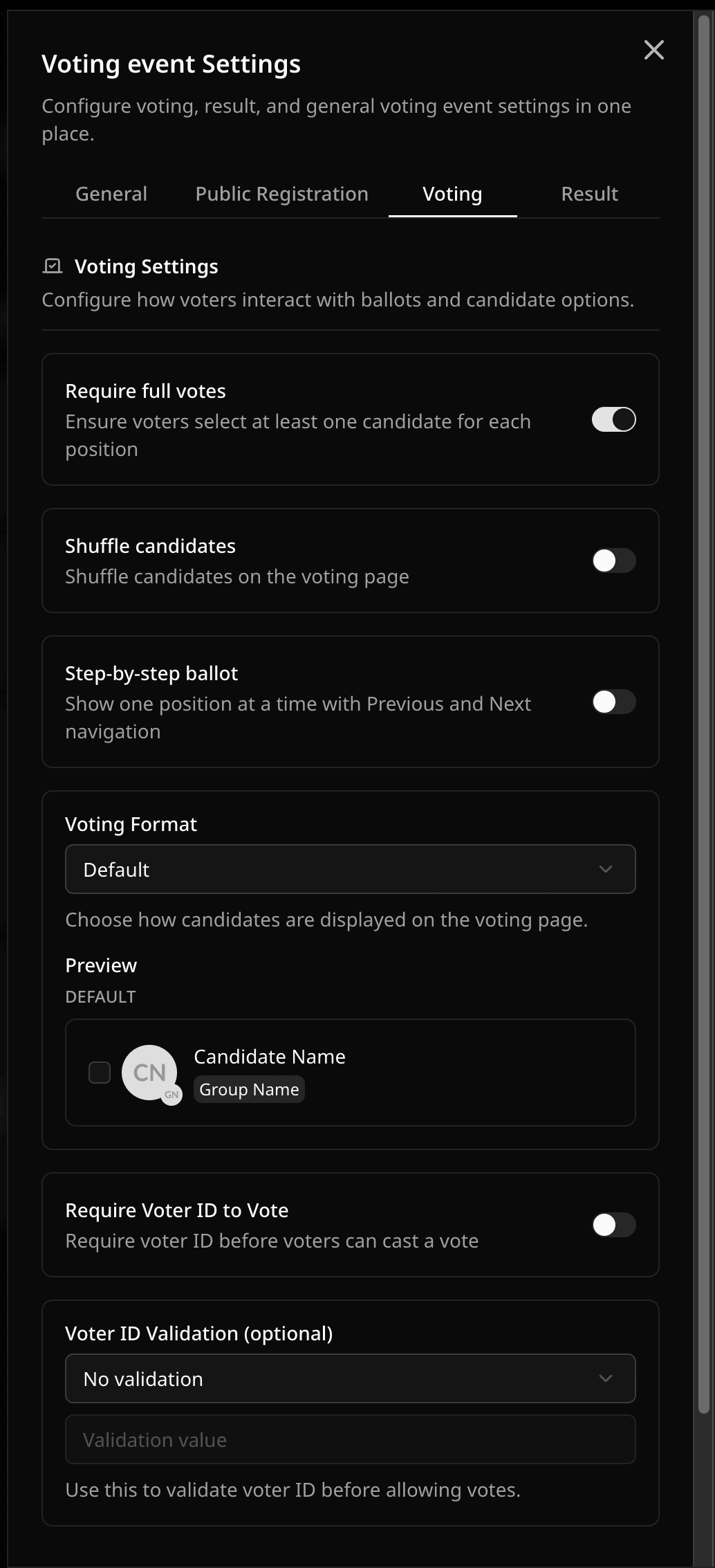
Voting
- Shuffle Candidates randomizes candidate order for each voter.
- Step-by-step ballot shows one position at a time.
- Voting Format picks the ballot layout. See Voting format.
- Require Voter ID to Vote asks for a Voter ID before the ballot opens.
- Save Voter Info During Voting (polls) asks for a name and optional email before the ballot.
- Limit to One Ballot per IP Address (polls) accepts one ballot per internet connection, not just per browser. See Public voting.
- Block Ballots from VPNs (polls) refuses ballots from known VPN and Tor addresses. See Public voting.
- Enable Weighted Voting counts each voter by their weight. See Weighted voting.
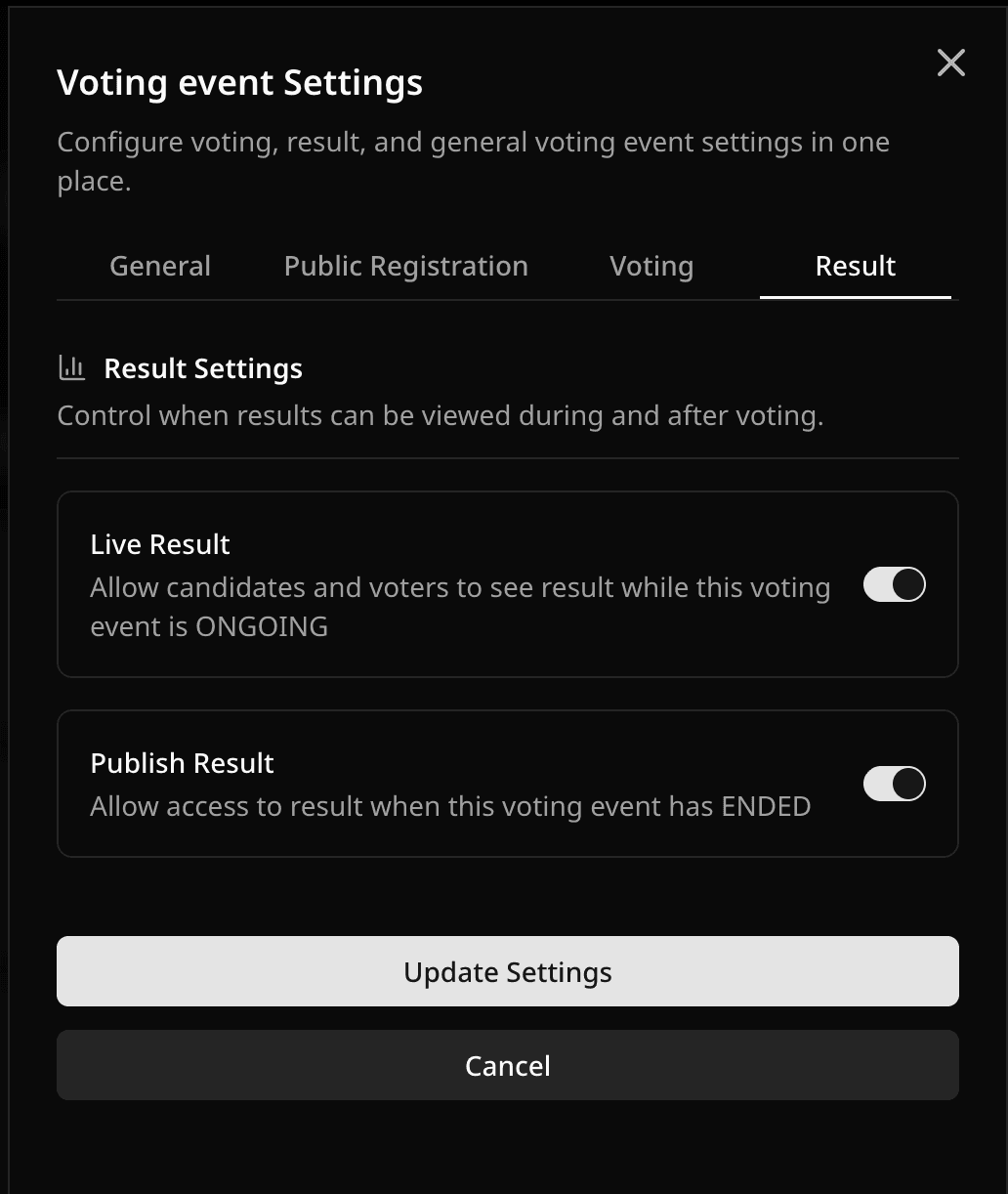
Result
- Live Result makes the result public right away, even before voting starts, until you turn it off.
- Publish Result makes the result public after the event ends.
- Show Top Candidates sets how many candidates each position shows first (2 to 10, default 3).
Plan features
Some tabs only appear when the event plan includes them: Custom domain and Voting centers on Custom plan, Webhooks on all plans. See the FAQ for what each plan unlocks.
Related help
Was this helpful?
Last updated October 16, 2026