Voting format
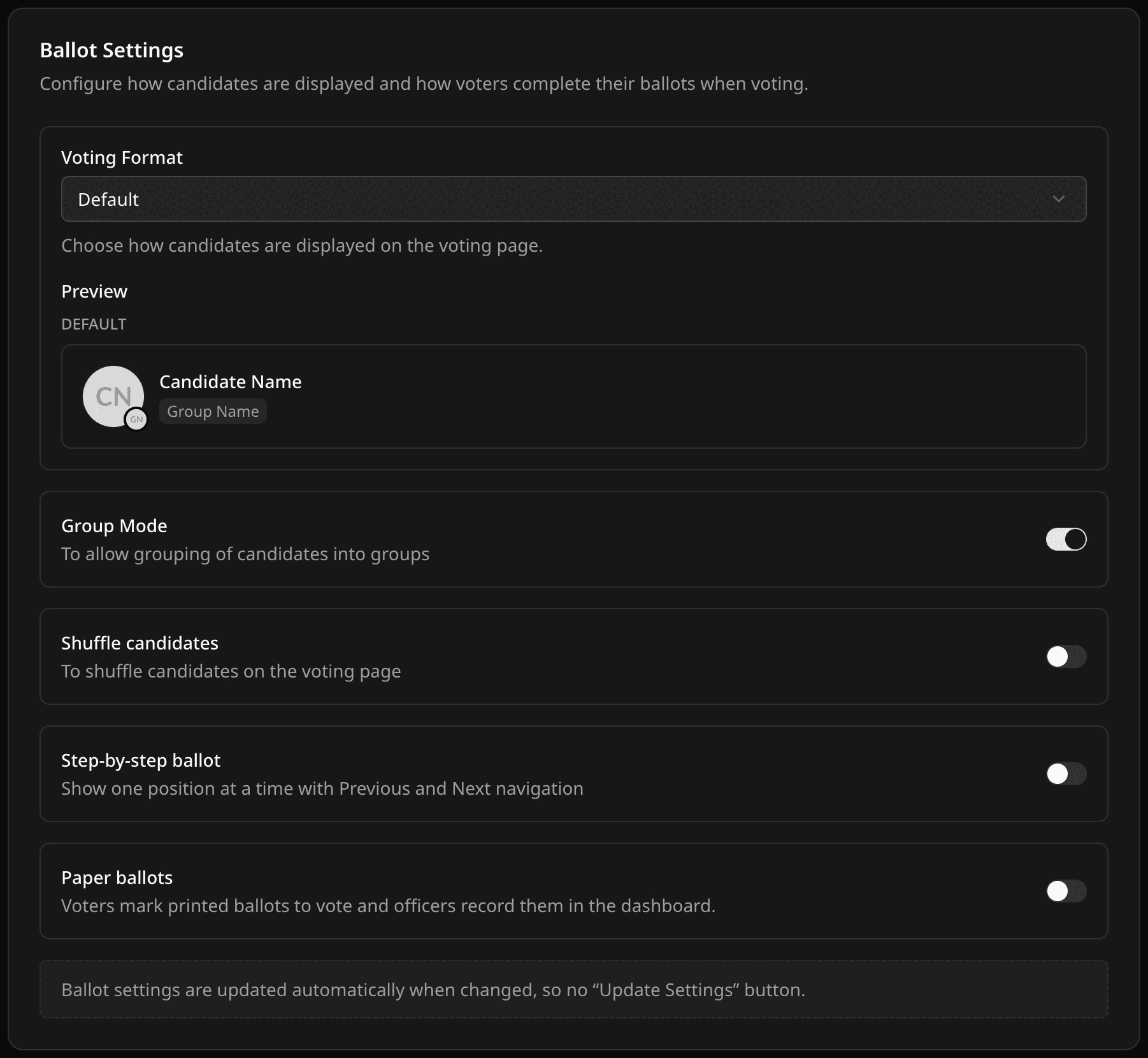
Choose how candidates look on the ballot.
In Voting Event Settings → Voting, pick Default, Big Avatar, Big Avatar (Full Image), Options With Avatar, or Options, check the preview, and save. You can also change it from Setup Ballot. The format changes only how the ballot looks, not how votes count.
Big Avatar (Full Image) shows each candidate's photo across the full width of the card, at its natural proportions, so nothing is cropped. Use it when the whole photo matters, such as in a beauty pageant.
Tips
- Use an avatar format only if you have good photos for every candidate.
- Long ballot? Turn on Step-by-step ballot so voters see one position at a time.
- Turn on Shuffle Candidates to avoid position bias.
- Test on a phone before you go live, and do not change the format while voting is open.
Related help
Was this helpful?
Last updated October 16, 2026