Paper ballots
Print numbered ballots, hand them out at the venue, and count them with a phone or tablet camera.
With paper ballots, voters mark a printed ballot at the venue. Officers scan each sheet with a phone or tablet, and Pepvote reads the marks and saves the votes. Every ballot has its own code and QR code, so Pepvote knows the sheet came from your event and counts it only once.
Paper ballots work for elections and polls on the Starter plan or above. While paper ballots are on, online voting is closed. Every vote comes from a printed ballot.
Turn it on
In Settings > Ballot, or the Ballot page's Settings tab, turn on Paper ballots. It saves right away. Paper ballots then shows in the sidebar under Votes.
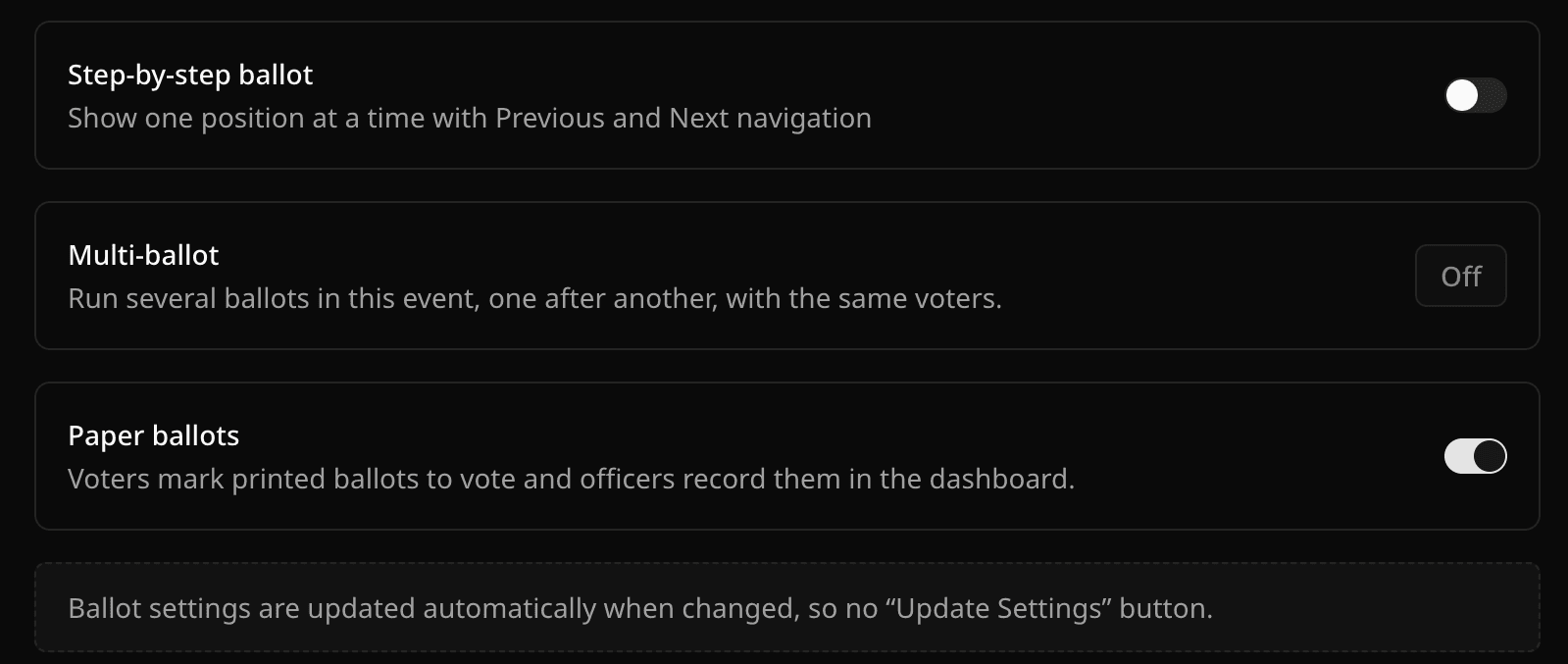
- Paper ballots cannot be on together with multi-ballot. Turn multi-ballot off first.
- Turning paper ballots on turns weighted voting off. A paper ballot always counts as one vote.
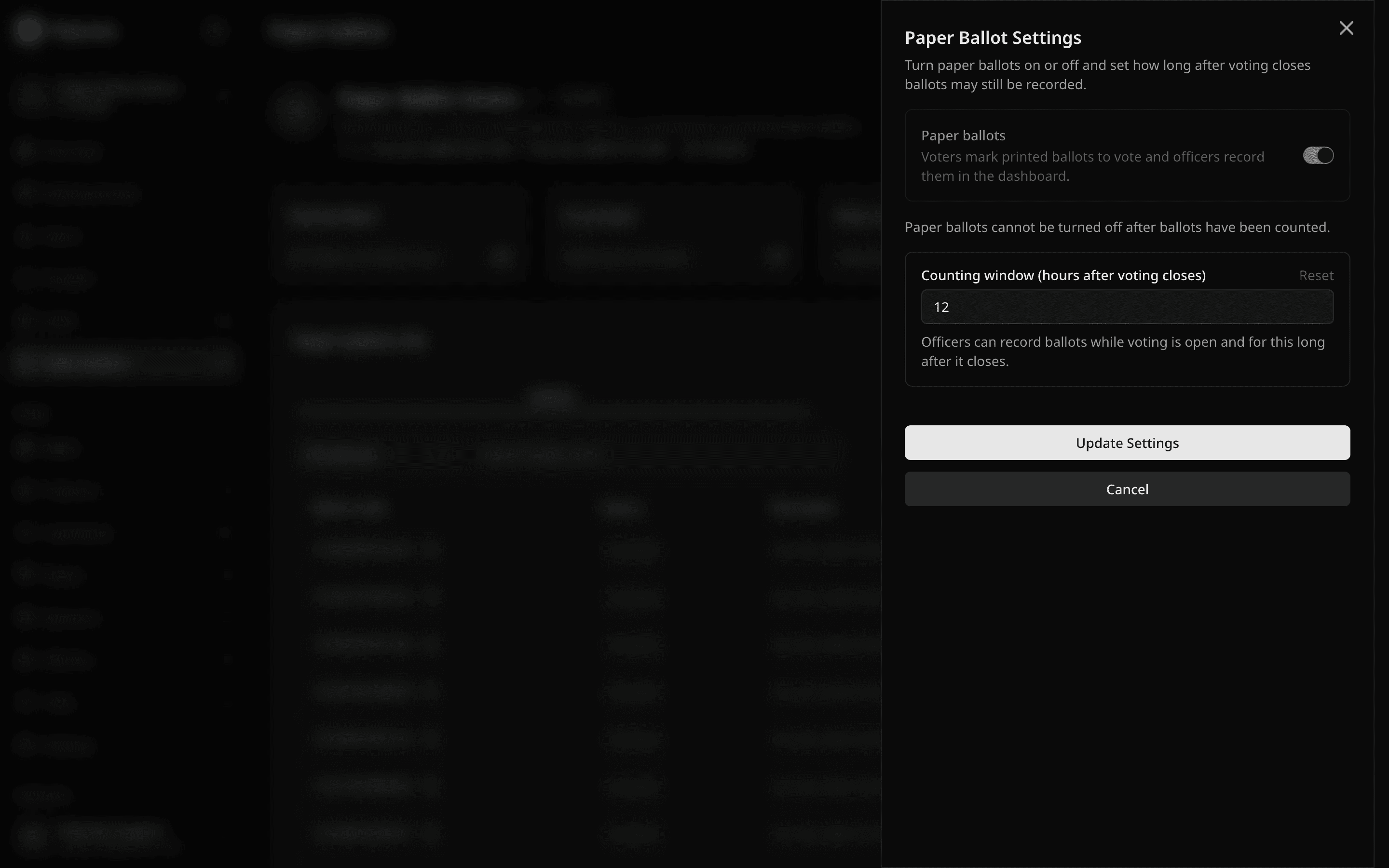
- You can turn paper ballots off until the first ballot is counted.
The Paper ballots page
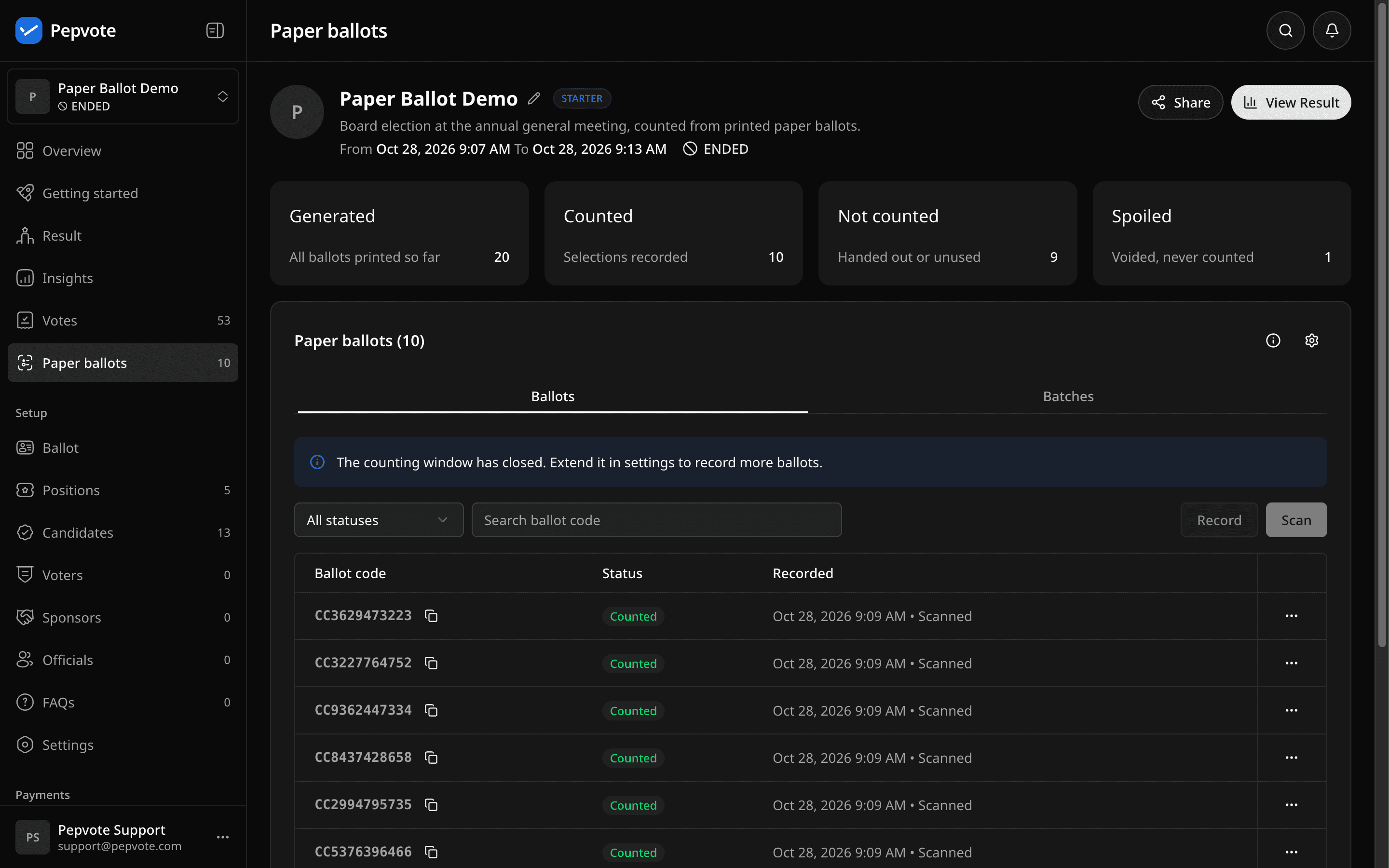
The totals at the top show ballots Generated, Counted, Not counted, and Spoiled. The Ballots tab lists every printed ballot. The Batches tab lists each print run.
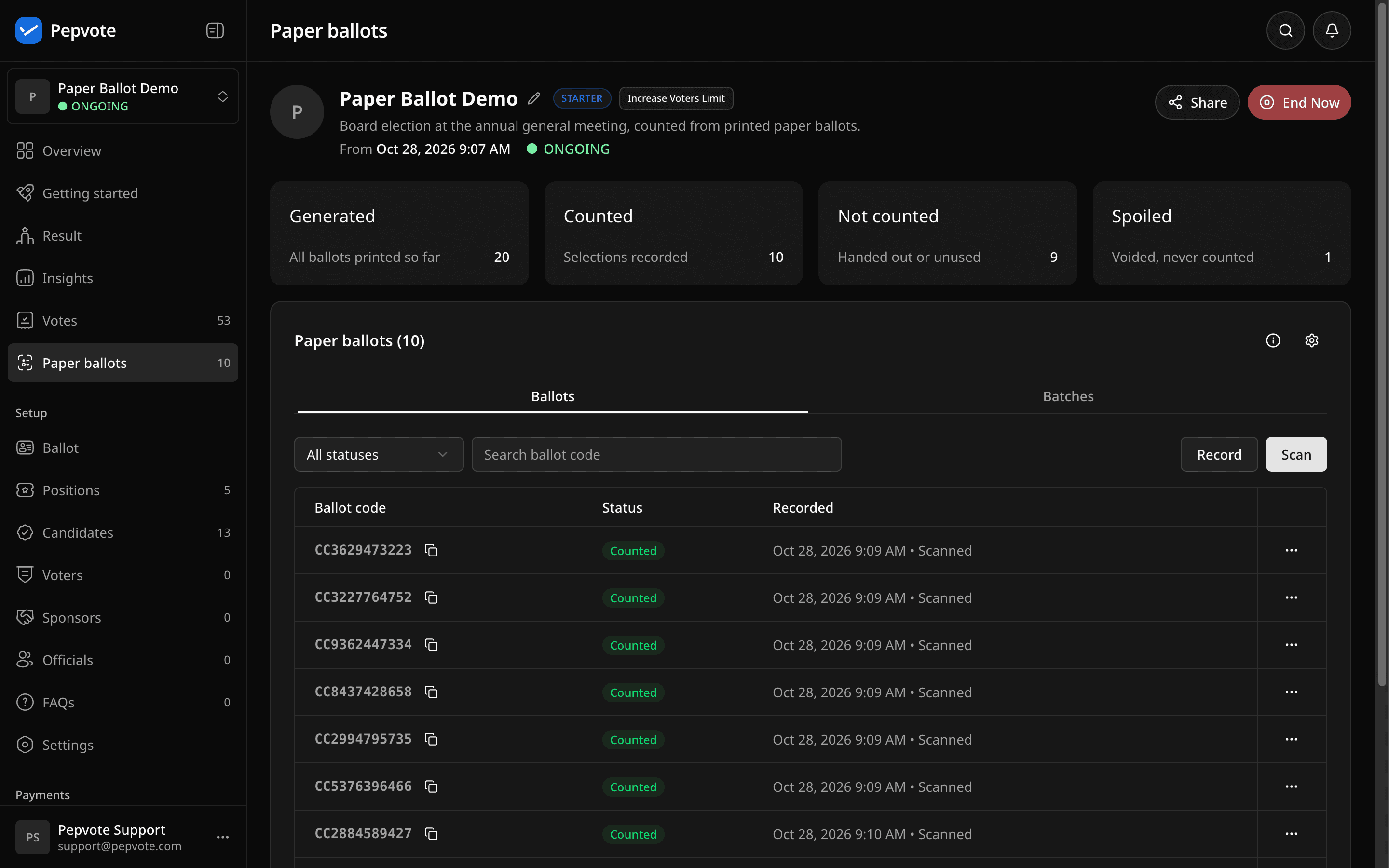
Each ballot has one status:
- Not counted means it was printed but not recorded yet.
- Processing means a scan is being read.
- Counted means its votes are saved. The note says Scanned, Reviewed, or Recorded by hand.
- Needs review means the reader found an unclear mark.
- Spoiled means it was voided and is never counted.
- Rejected means the image could not be read. Scan it again or record it by hand.
Select a row to open the ballot. The row menu offers Review, Record, Spoil, View votes, and View image when the status allows. The info icon shows the counting window and what prints on the ballot. The gear opens the settings.
Generate ballots
- Open the Batches tab and select Generate.
- Enter the number of ballots. Add a few spares for spoiled sheets.
- Pick the paper size: A4 or US Letter.
- Select Generate ballots.
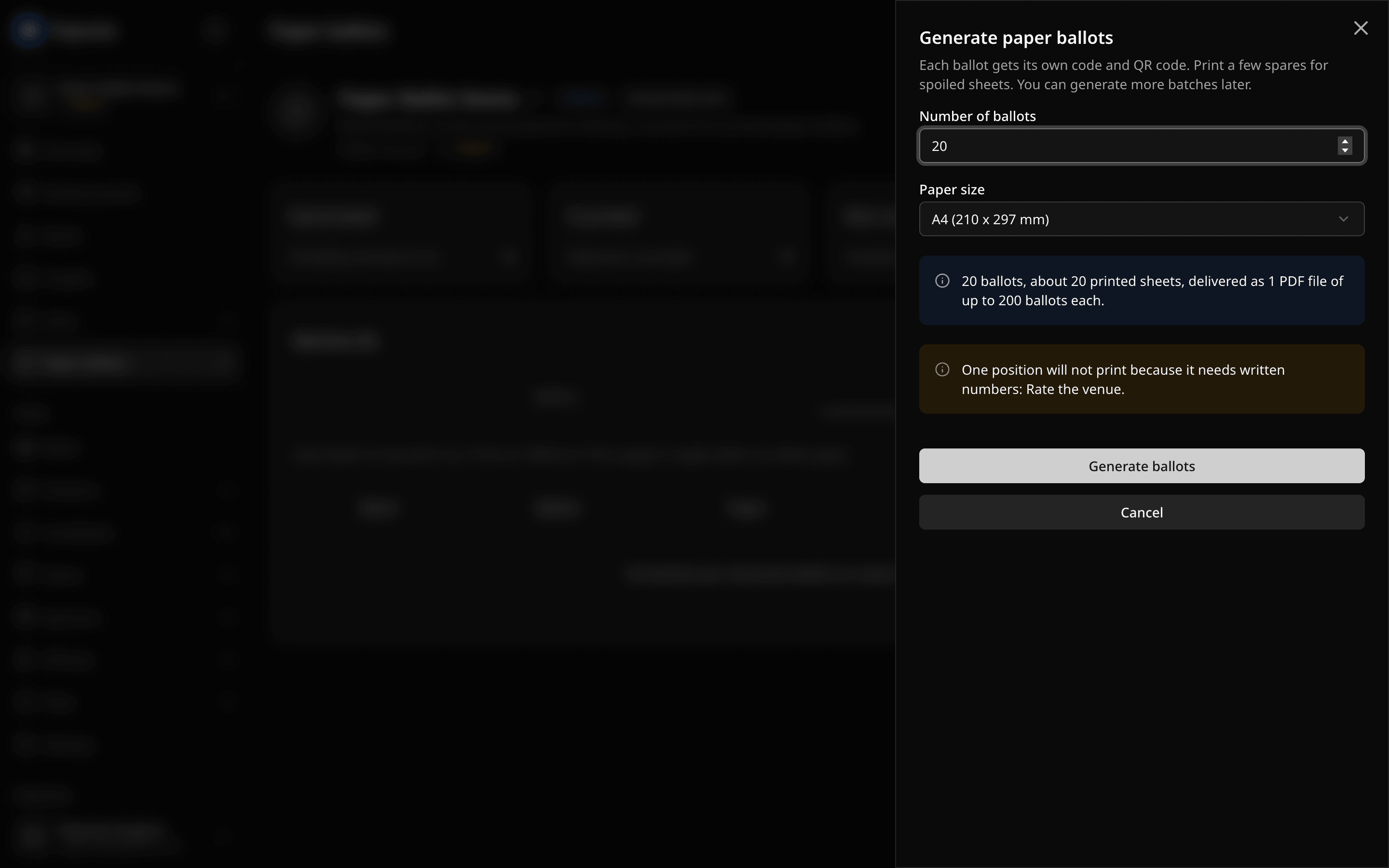
The sheet shows how many printed sheets and PDF files you will get. Each PDF file holds up to 200 ballots.
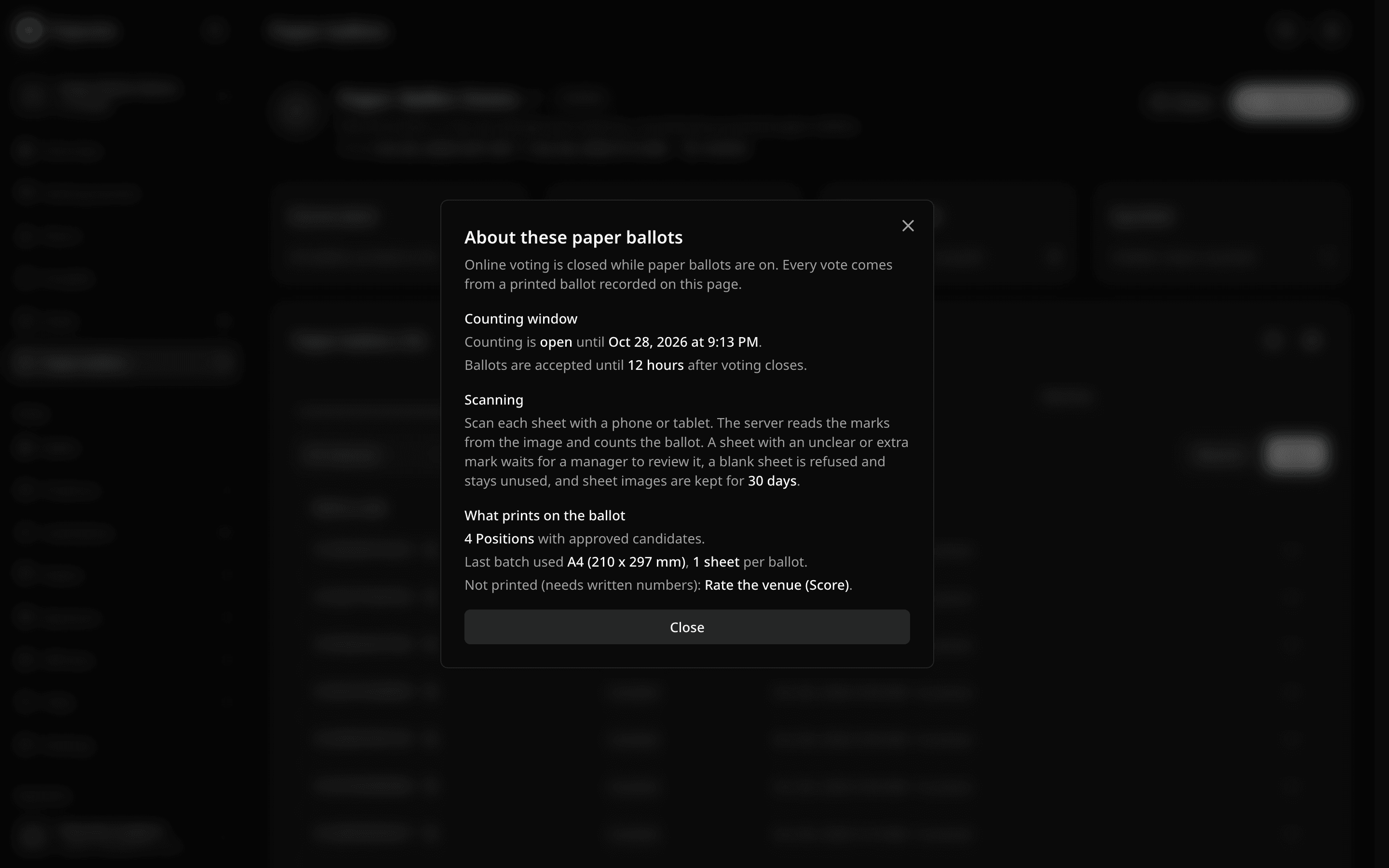
Only plurality, approval, referendum, and ranked choice positions print. Score, cumulative, and quadratic positions need written numbers, so they stay off the sheet, and the Generate sheet names them. Each printed position needs at least one approved candidate.
- One batch holds up to 20,000 ballots. Generate another batch when you need more.
- An event can generate up to twice the voters its plan allows, for example 300 on Starter. Unlimited plans have no cap. Deleting an unused batch frees its ballots.
Download and print
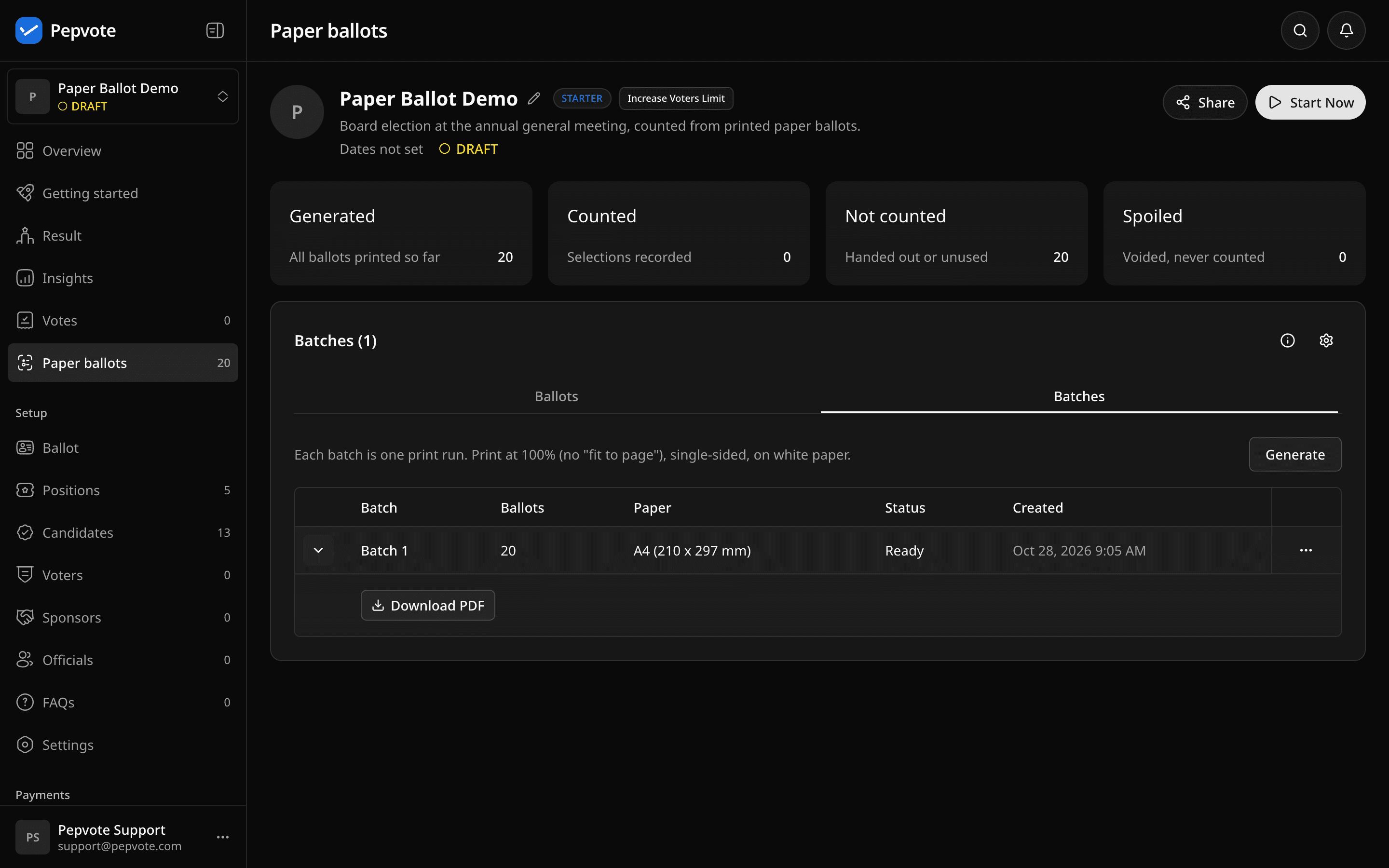
When the batch shows Ready, expand its row and select Download PDF. Print at 100% (no "fit to page"), single-sided, on white paper.
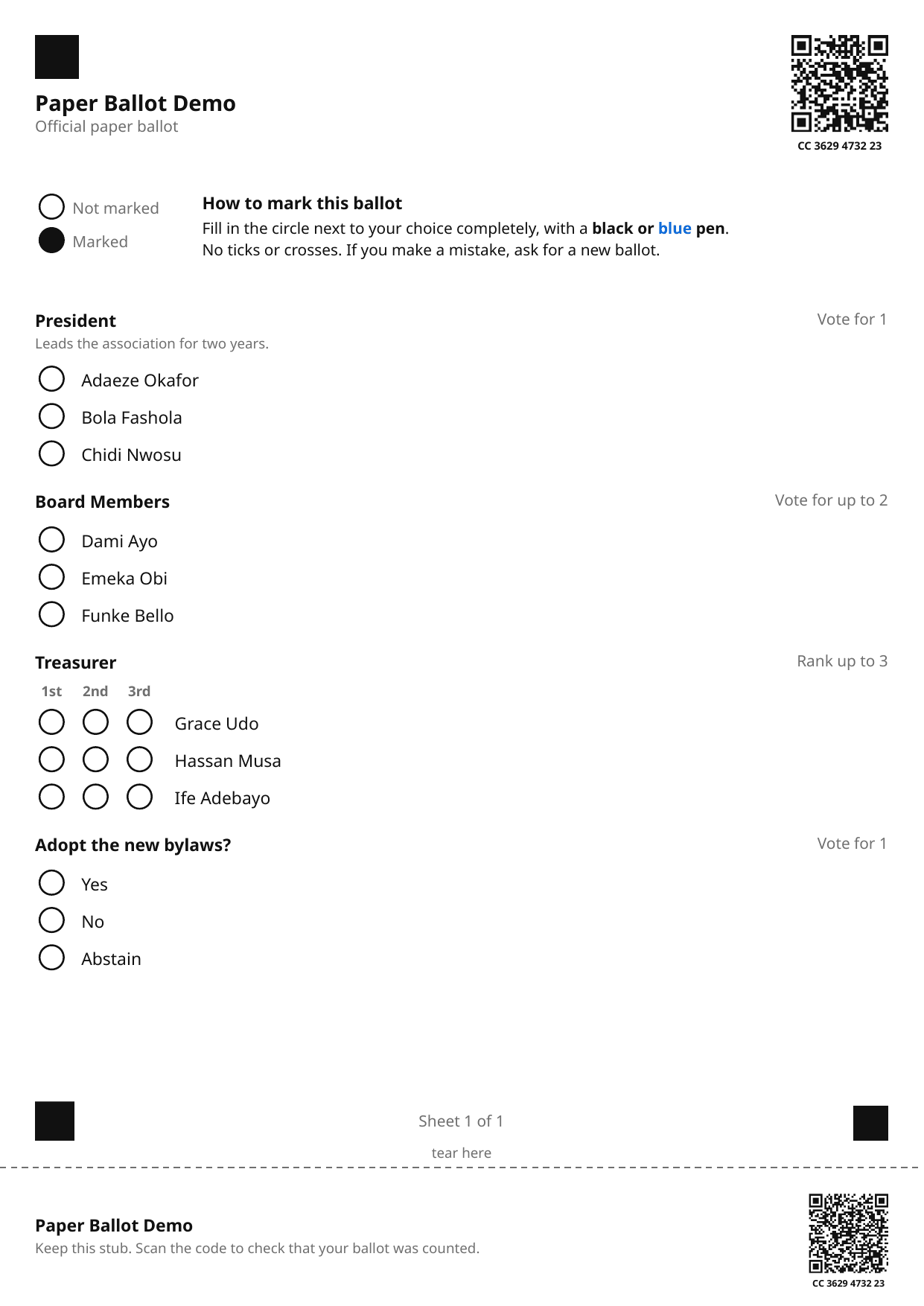
Each printed ballot has:
- The ballot code and a QR code at the top right, and black squares in the other three corners. The scanner uses them to find the page.
- A "How to mark this ballot" block. Voters fill in the circle completely with a black or blue pen.
- A tear-off stub at the bottom with the same code and a second QR code. The voter keeps it to check their ballot later.
If you change positions or candidates after printing, ballots from earlier batches can no longer be counted. Generate and print a new batch. A batch with counted ballots cannot be deleted.
At the venue, hand each voter a ballot. When they return it, tear off the stub, check that its code matches the sheet, and give the stub to the voter. If a voter makes a mistake, give them a new ballot and spoil the old one.
Scan ballots
Owners, managers, and polling officers scan from the dashboard on a phone or tablet. You can generate and print before voting starts, but counting opens only when voting starts.
- On the Ballots tab, select Scan and allow camera access.
- Hold a sheet so the whole page is in view. A green outline means Pepvote found the page and read the code.
- Hold still until it beeps. Put the sheet on the done pile and show the next one.
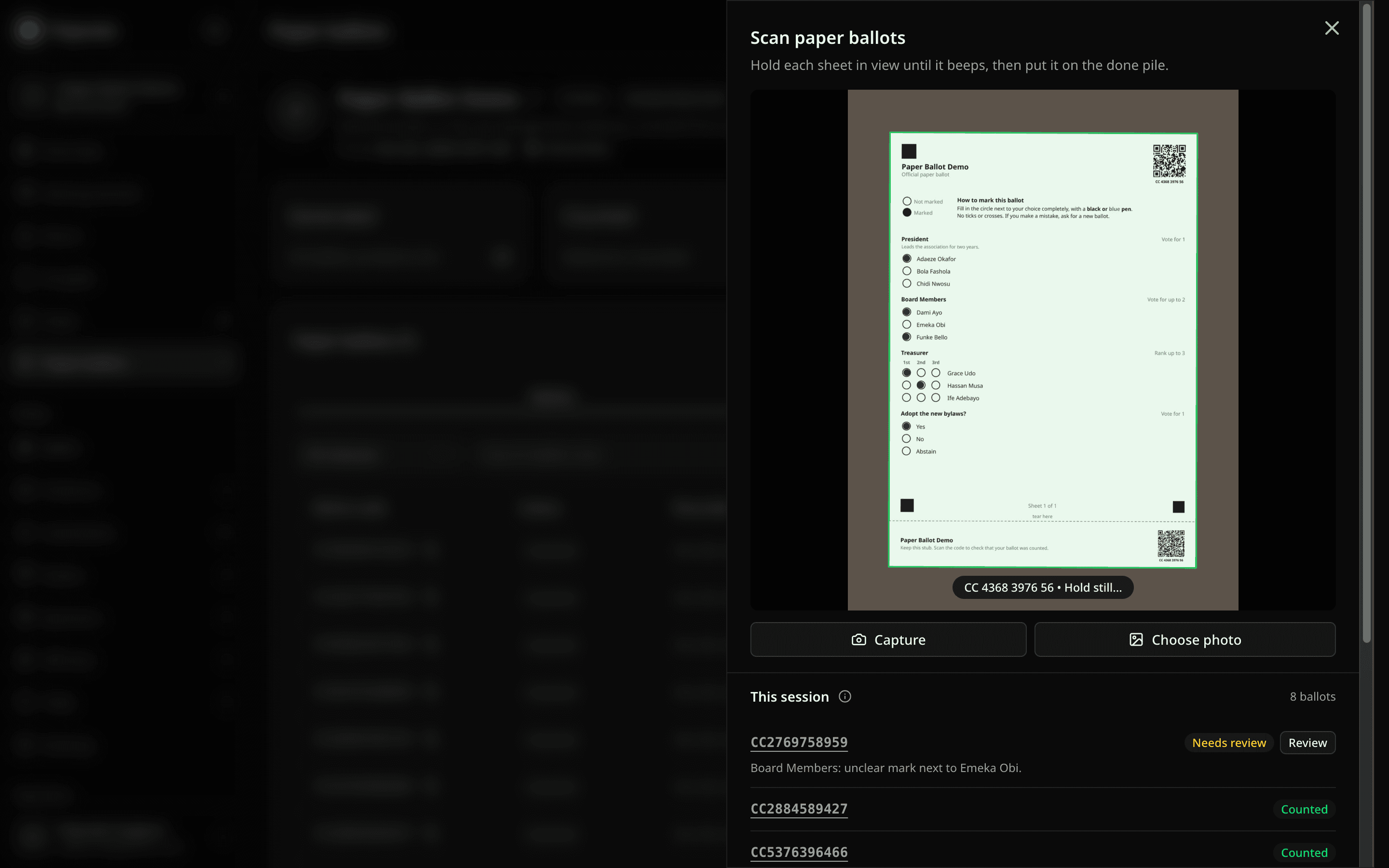
This session lists the sheets you scanned in the last hour, with their status. Pepvote reads the marks on the server, usually in a few seconds.
- Capture takes the photo by hand. Choose photo uploads a photo instead.
- The button at the top right of the camera view switches cameras.
- A sheet you already scanned flashes amber and plays a low tone.
- A blank sheet is refused and stays Not counted, so you can still hand it out.
- Keep the scan sheet open until uploads finish. Closing it drops photos that are still uploading. Scan those sheets again.
Review unclear marks
A sheet with an unclear or extra mark goes to Needs review with the reason, for example "Board Members: unclear mark next to Emeka Obi." Owners and managers select Review in the scan list or the row menu.
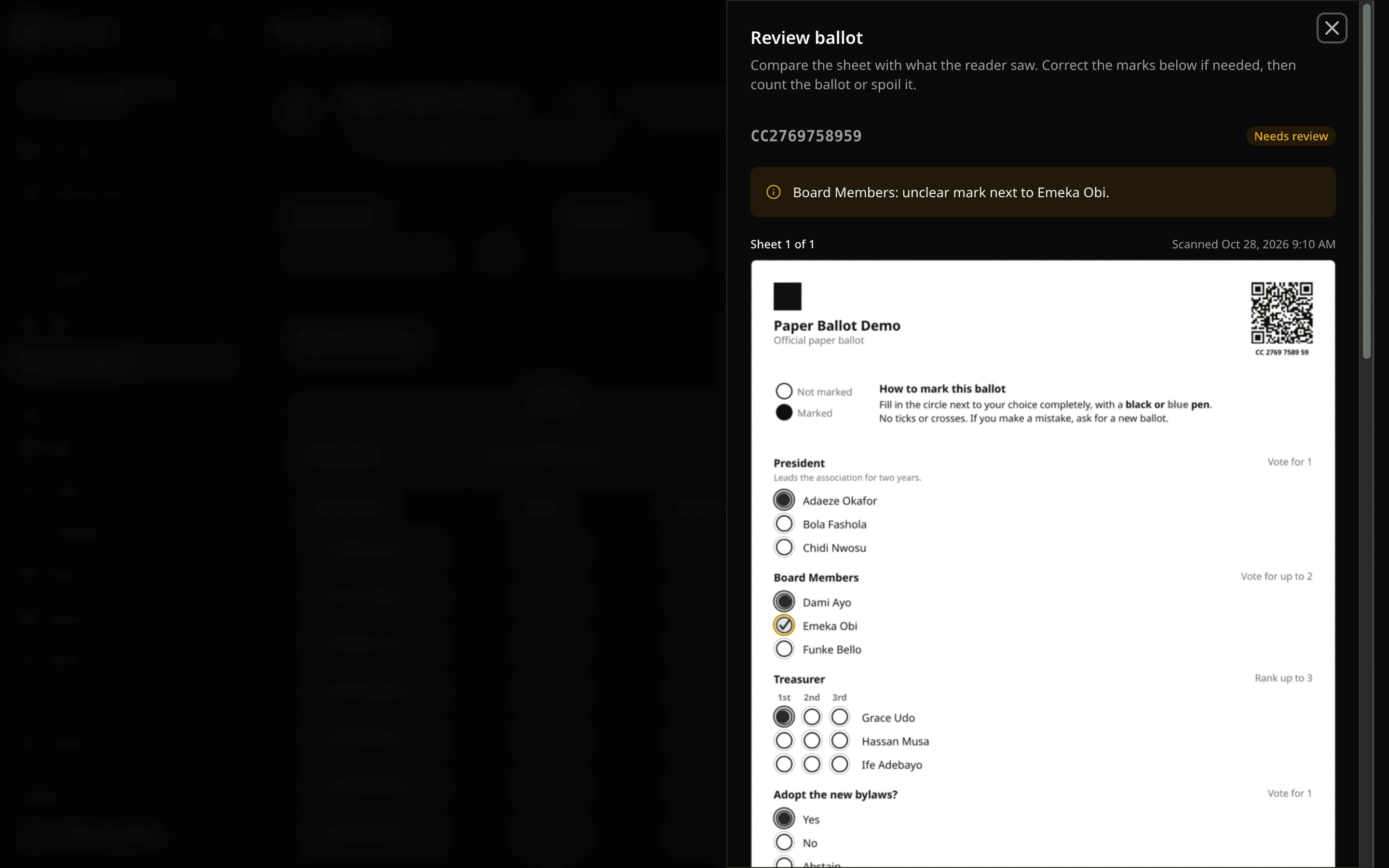
The scanned image shows green rings on counted marks and amber rings on unclear marks. Below it, the form holds what the reader saw, with Check beside each flagged position. Correct the marks, then select Count ballot or Spoil ballot.
Record by hand
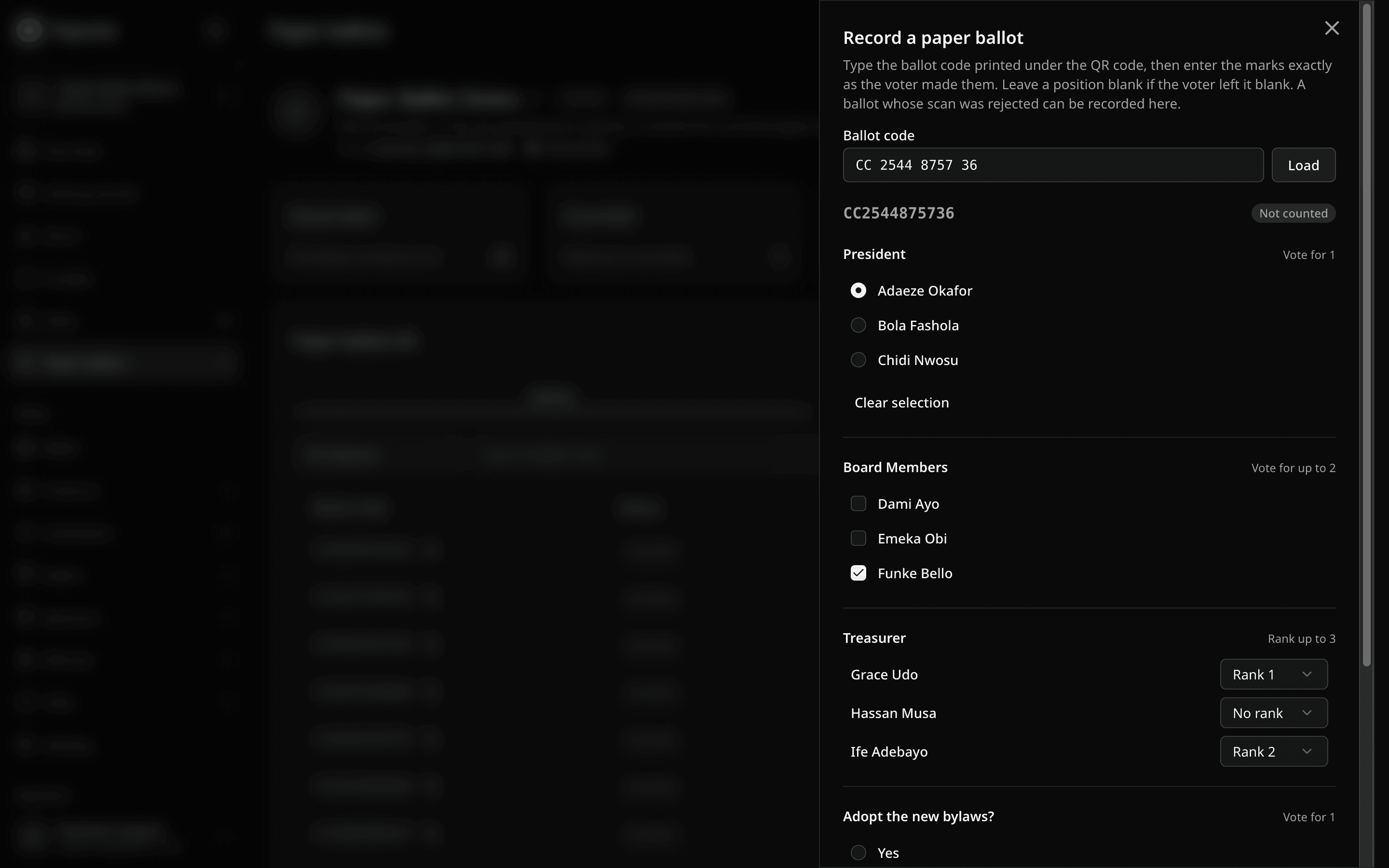
If a sheet will not scan, select Record. Type the ballot code printed under the QR code and select Load. Enter the marks exactly as the voter made them, then select Count ballot. Leave a position blank if the voter left it blank.
To void a sheet, open its row menu and select Spoil ballot. You can add a reason, such as "Voter asked for a new sheet."
Counting window after voting ends
Counting does not stop when voting ends. Officers can scan and record ballots while voting is open and for 12 hours after it closes. This grace period gives you time to finish the count after the polls close. The info icon on the Paper ballots card shows when the window closes.
To change the window, select the gear, set Counting window (hours after voting closes) from 0 to 720 hours (30 days), and select Update Settings. Reset puts back the 12-hour default. You can extend the window after it closes.
When the window closes, Record and Scan turn off and the page says "The counting window has closed. Extend it in settings to record more ballots." If the event has no end time, counting stays open.
Results
Paper votes go into the same results as online votes. Insights shows them under the Paper vote channel. On the Votes page, each counted ballot's votes carry its ballot code.
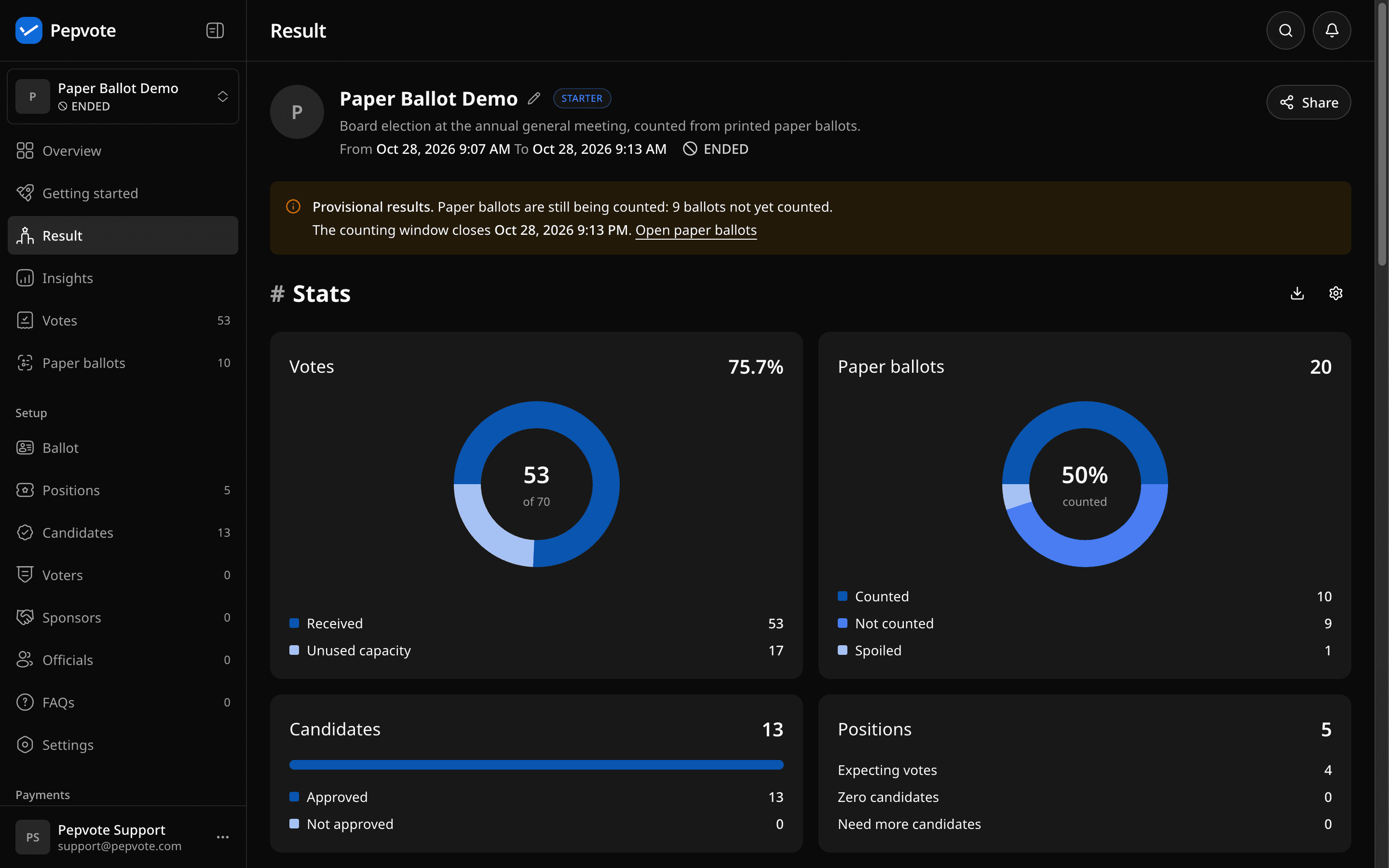
While the counting window is open and any ballot is not counted, the Result page shows a Provisional results banner. After voting ends, the banner also shows when the counting window closes. The Paper ballots card shows counted, not counted, and spoiled sheets.
What voters see
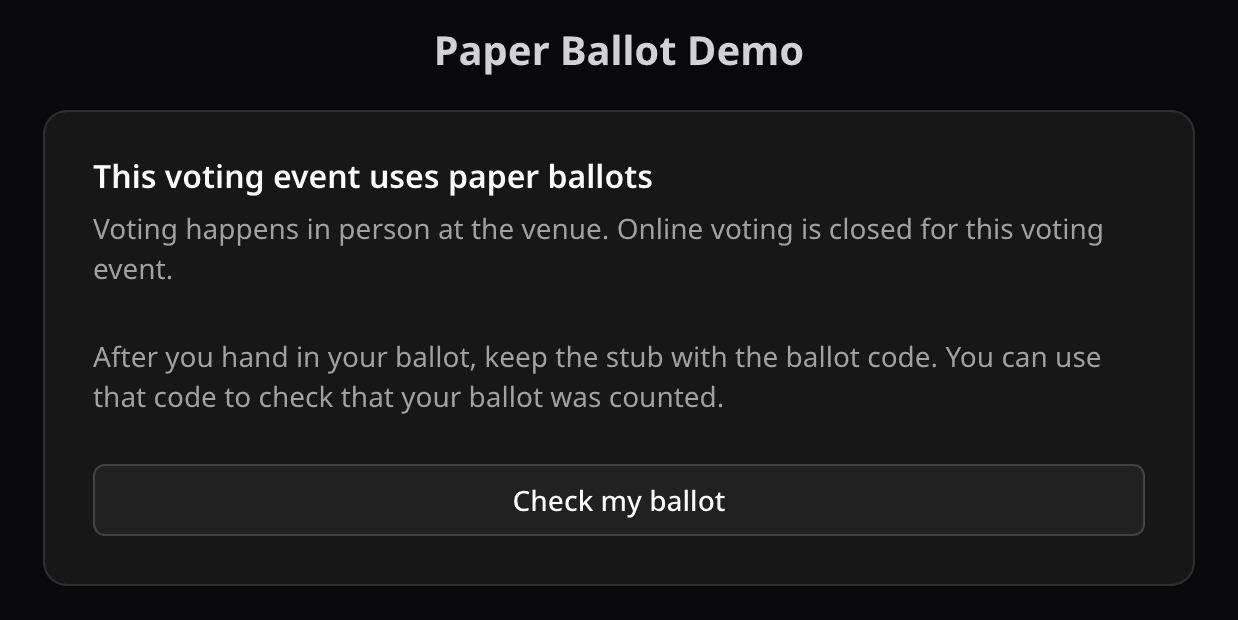
The voting page tells voters that the event uses paper ballots and that online voting is closed. Check my ballot opens the confirmation page.
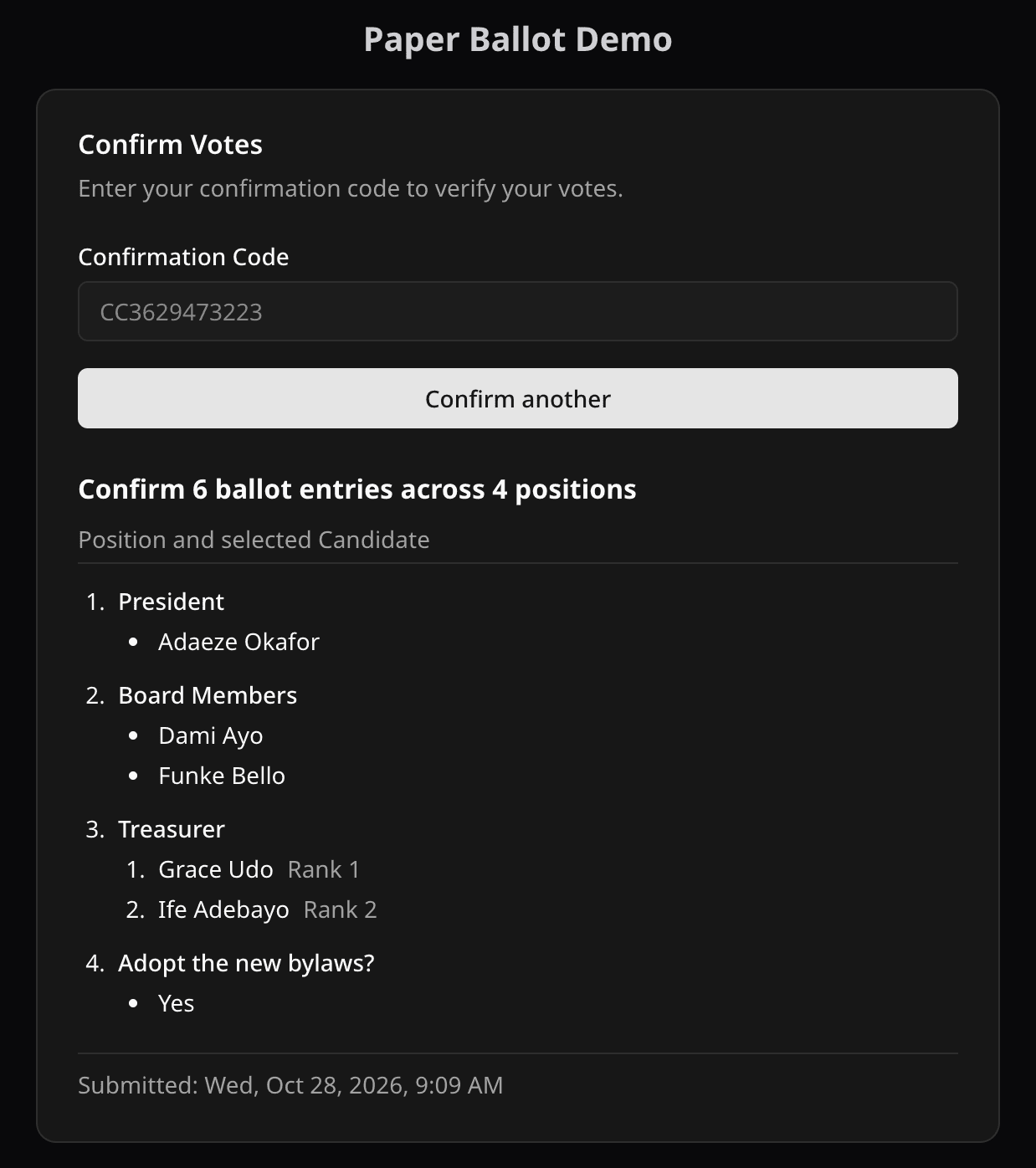
To check a ballot, the voter scans the QR code on their stub. The confirmation page opens with the code filled in. Confirm shows the choices their ballot counted.
Who can do what
- Owners and managers do everything: the switch, the counting window, generating and deleting batches, scanning, recording, spoiling, and review.
- Polling officers scan, record by hand, and spoil ballots.
- Observers see the totals, the ballots table, and sheet images. They do not see batches.
Good to know
- Scanned sheet images are kept for 30 days. Readings and statuses stay after that.
- In test mode, counting opens before voting starts, so you can rehearse. If any ballot was used, Clear test data deletes all paper ballots and batches. Print a new batch for the real vote.
Related help
Last updated October 28, 2026