Zoom app
Run votes and elections inside your Zoom meetings.
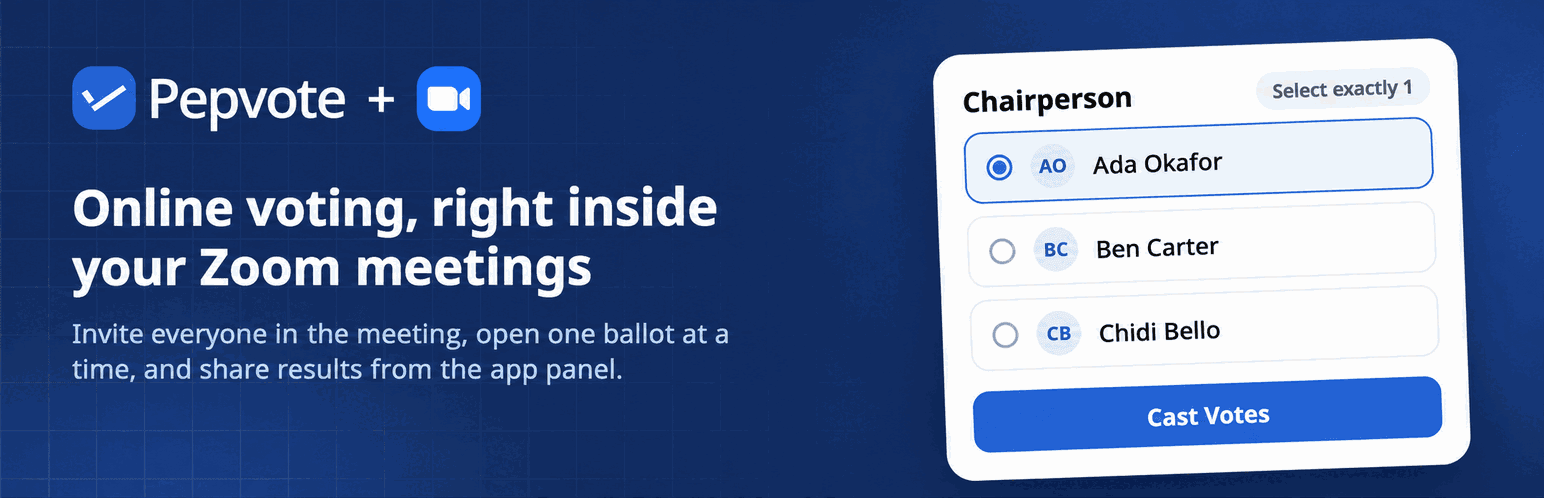
Pepvote for Zoom runs a voting event inside a Zoom meeting. The host picks the event, invites everyone with one tap, and each participant gets a Zoom prompt that opens the ballot in their Zoom window. Only people on your voter list can vote, each voter votes once, and the host shares the result with the room. Nobody opens a browser or types a link.
Beta access
Pepvote for Zoom is in beta. It is not yet listed in the Zoom App Marketplace, so you add it with an invitation link.
- Email support@pepvote.com with the subject Zoom app beta, your Pepvote account email, and the date of the meeting you want to use it in.
- We reply with an authorization link. Open it, sign in to Zoom, and select Allow. The app is added to your Zoom account.
- On pepvote.com, go to Profile → Integrations and select Connect on the Zoom card. This links the app to your Pepvote account.
Only the host needs the app. Participants vote from the prompt the host sends; they do not need a Pepvote account or a Zoom app of their own.
Requirements
- A Pepvote account that manages the voting event (owner or manager).
- The Zoom desktop app for Windows or macOS. Zoom apps are not available in the Zoom web client, and Pepvote does not yet support the Zoom mobile apps.
- Zoom apps enabled on your Zoom account. If the Apps button is missing from your meeting toolbar, your Zoom admin needs to enable Zoom Apps in the account settings.
Connect your Zoom account
- On pepvote.com, open Profile → Integrations.
- On the Zoom card, select Connect.
- Sign in to Zoom if asked and select Allow.
The card shows Connected with the date. One Zoom account links to one Pepvote account. To unlink, select Disconnect on the card, or remove Pepvote under Apps at zoom.us; either way the connection and its tokens are deleted.
Run a vote in a meeting
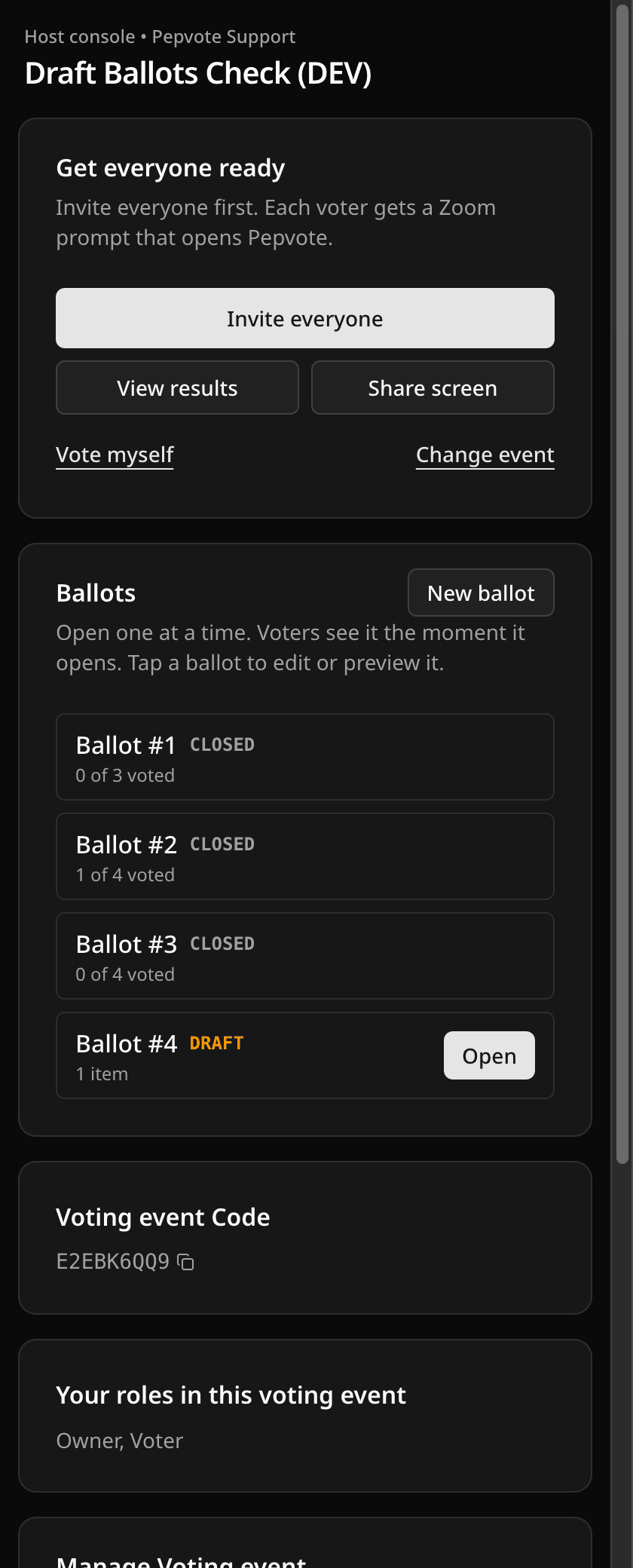
- Start your meeting and select Apps in the toolbar, then Pepvote. The panel opens on the right.
- Pick the voting event for this meeting. The list shows every event you manage; drafts can be picked ahead of the meeting. New voting event creates one on the spot with a sample ballot.
- Select Invite everyone. Each participant gets a Zoom prompt that opens the Pepvote ballot.
- When you are ready, select Open on a ballot (or Start for a single-ballot event). Voters see it the moment it opens, and the row shows how many have voted.
- Select Close (or Stop) to end that ballot. Open the next one when the room is ready.
- Select View results to see the count, or Share screen to show it to everyone. Results follow the event's visibility settings.
Tap any ballot to edit or preview it before it opens. New ballot adds one during the meeting on events that allow multiple ballots. Vote myself opens your own ballot, and Change event switches the meeting to a different event.
Under the ballots you will find the event code, your roles, and the same Manage actions as the dashboard: edit the event, invite officials, upload a logo, aliases, settings, and start or end now. Plan upgrades open pepvote.com in your browser; payments are not taken inside Zoom.
What participants see
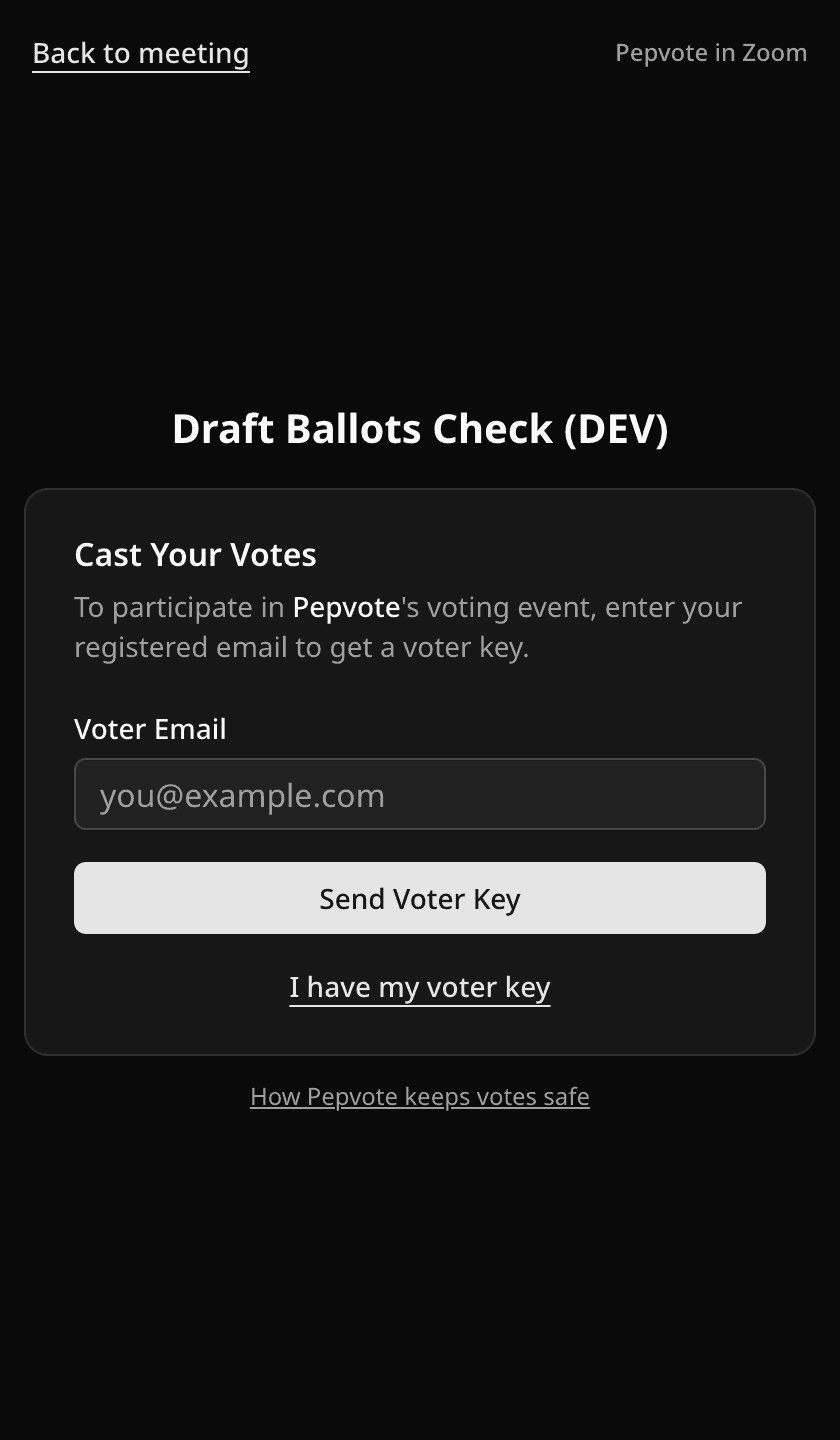
After the host's invitation, the Pepvote panel opens on the ballot. A voter enters their registered email to receive a voter key, or enters the key they already have, and votes. Zoom only confirms the meeting; Pepvote still checks the voter against your list, so the roster rules you set apply. A voter verifies once per meeting and moves to each new ballot as the host opens it.
Participants who join from a phone or the web client cannot open the app. Paste the event's voting link from the Share sheet into the Zoom chat for them.
Not working?
- Apps button missing. Zoom Apps are off for the account. Ask your Zoom admin to enable them, then restart the Zoom app.
- "Pick a voting event" shows no events. The Zoom account is connected to a different Pepvote account, or you do not manage any events. Check Profile → Integrations on pepvote.com.
- Participants did not get the prompt. Select Invite everyone again. Participants who joined after the invitation need a new one, and participants on phones or the web client never receive it.
- "You cannot run this vote." Another host picked an event you do not manage. You can still vote in it.
- The panel asks you to open Pepvote from a meeting. The page was opened in a browser. It only works inside the Zoom app.
- Share screen says "Share screen" while you are sharing. The button follows Zoom's own sharing events; reload the panel from Apps if it gets out of step.
Related help
Last updated November 9, 2026