Import and export data
Import records from a spreadsheet or previous event and export event data as CSV.
Import a spreadsheet
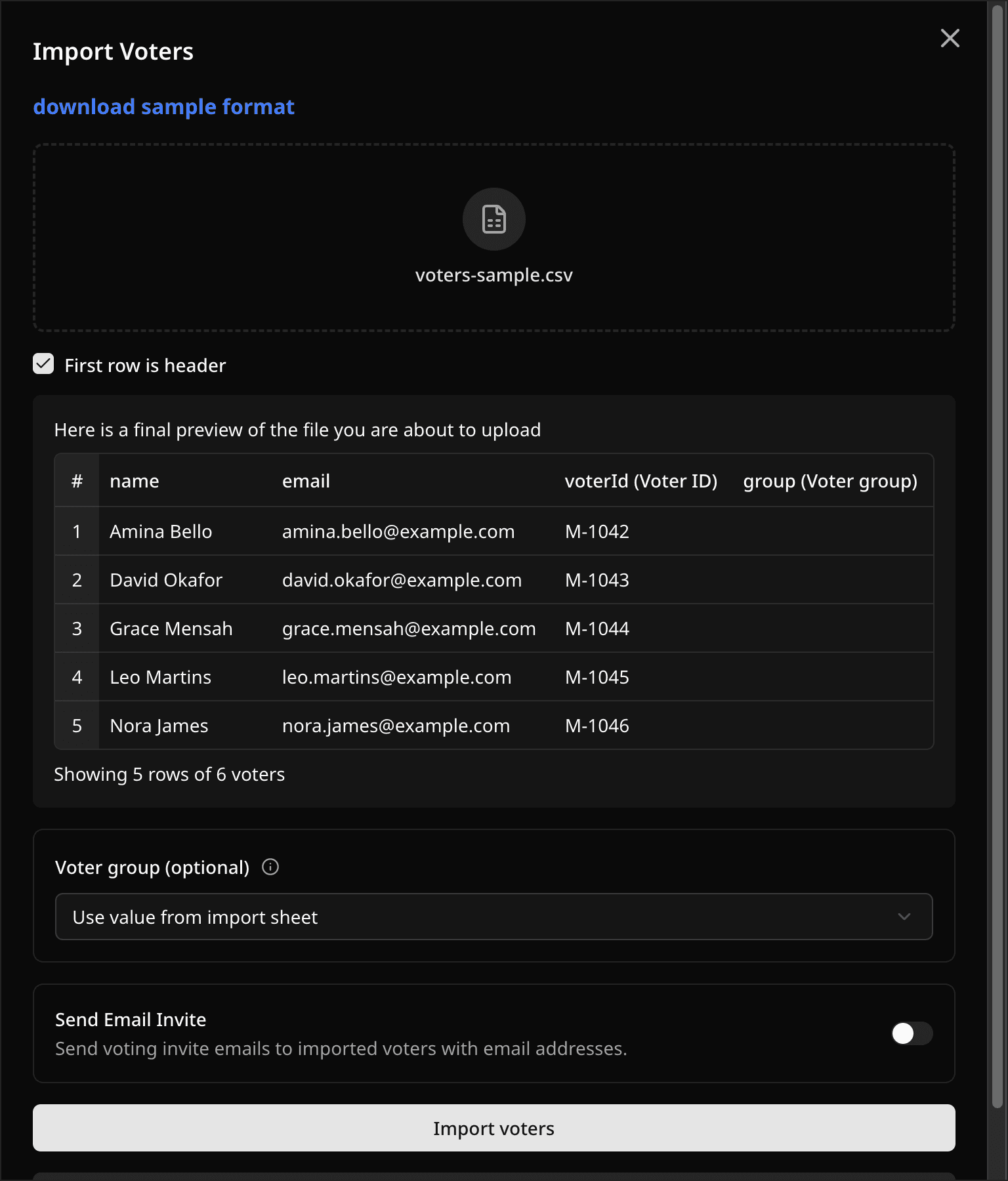
Each data tab has an Import button.
- Download the sample file from the import sheet and fill it in.
- Select Import and upload a CSV, XLS, or XLSX file under 10 MB.
- Say whether the first row is a header, then check the column mapping.
- Select Import.
The preview shows the first five rows, but the whole file is imported. What each type accepts:
- Positions: title, voting method, selection rules, and method settings.
- Candidates: name, email, position names.
- Voters: name, email, Voter ID, and weight if weighted voting is on.
- Sponsors: name, contact email, description, pin order.
- Groups: name.
With Group Mode on, position, candidate, and voter imports also accept a group column, or you can pick one group for the whole file. Sponsors are not grouped. Candidate, voter, and sponsor imports can send an email invite to each row that has a valid address (Starter or Custom plan).
Import from a previous event
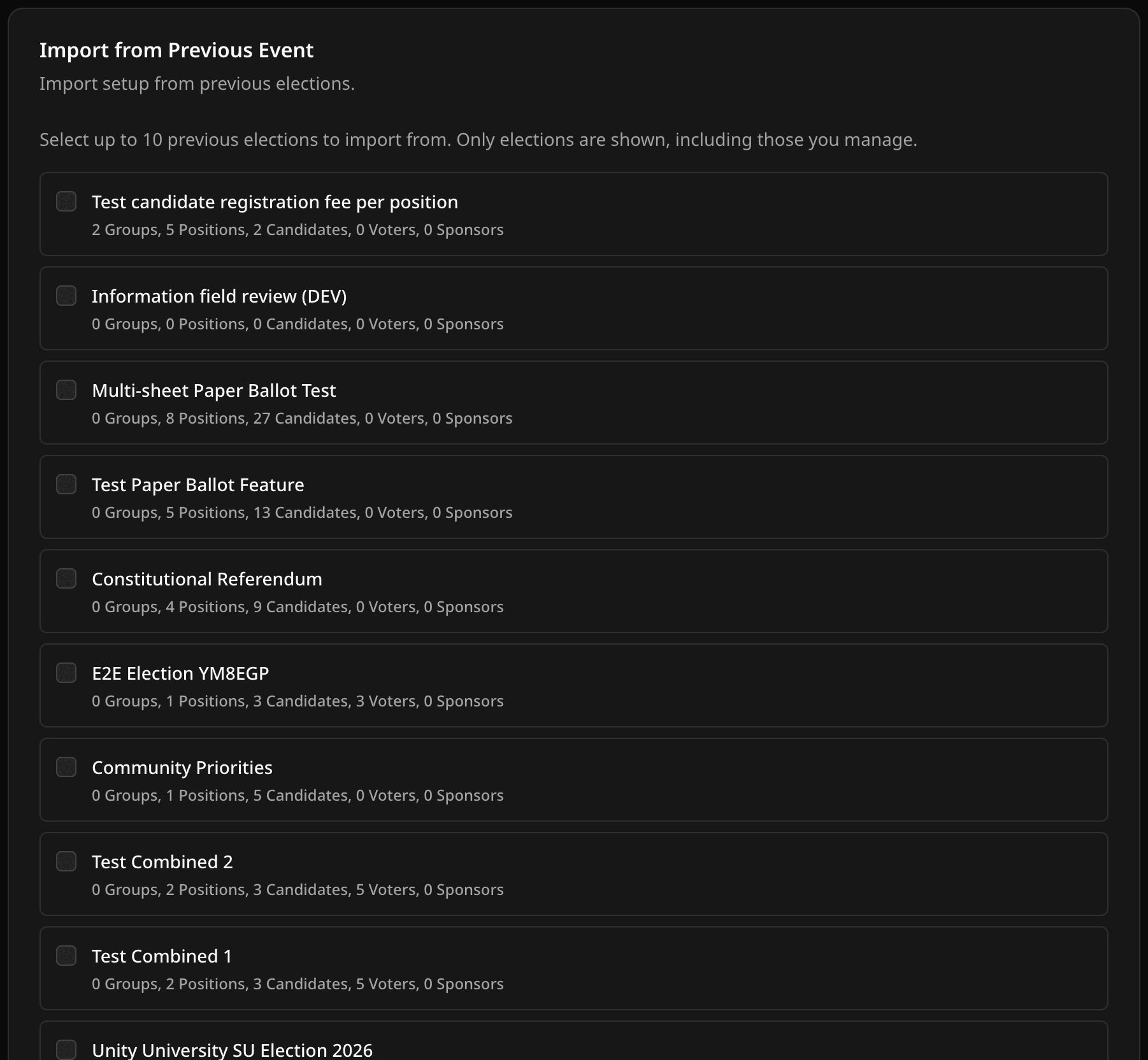
On Starter or Custom, use Import from Previous Event to copy records from up to 10 source events. Elections import from elections, and polls import from polls.
- Elections can import groups, positions, candidates, voters, and sponsors.
- Polls can import groups, positions/questions, candidates/options, and sponsors. Polls do not import voters.
You can select source events from events you created or manage via a manager role.
Export to CSV
Exports need a Starter or Custom plan. Open the event Settings export area, pick the data type, and confirm. The Voters tab also has its own export button.
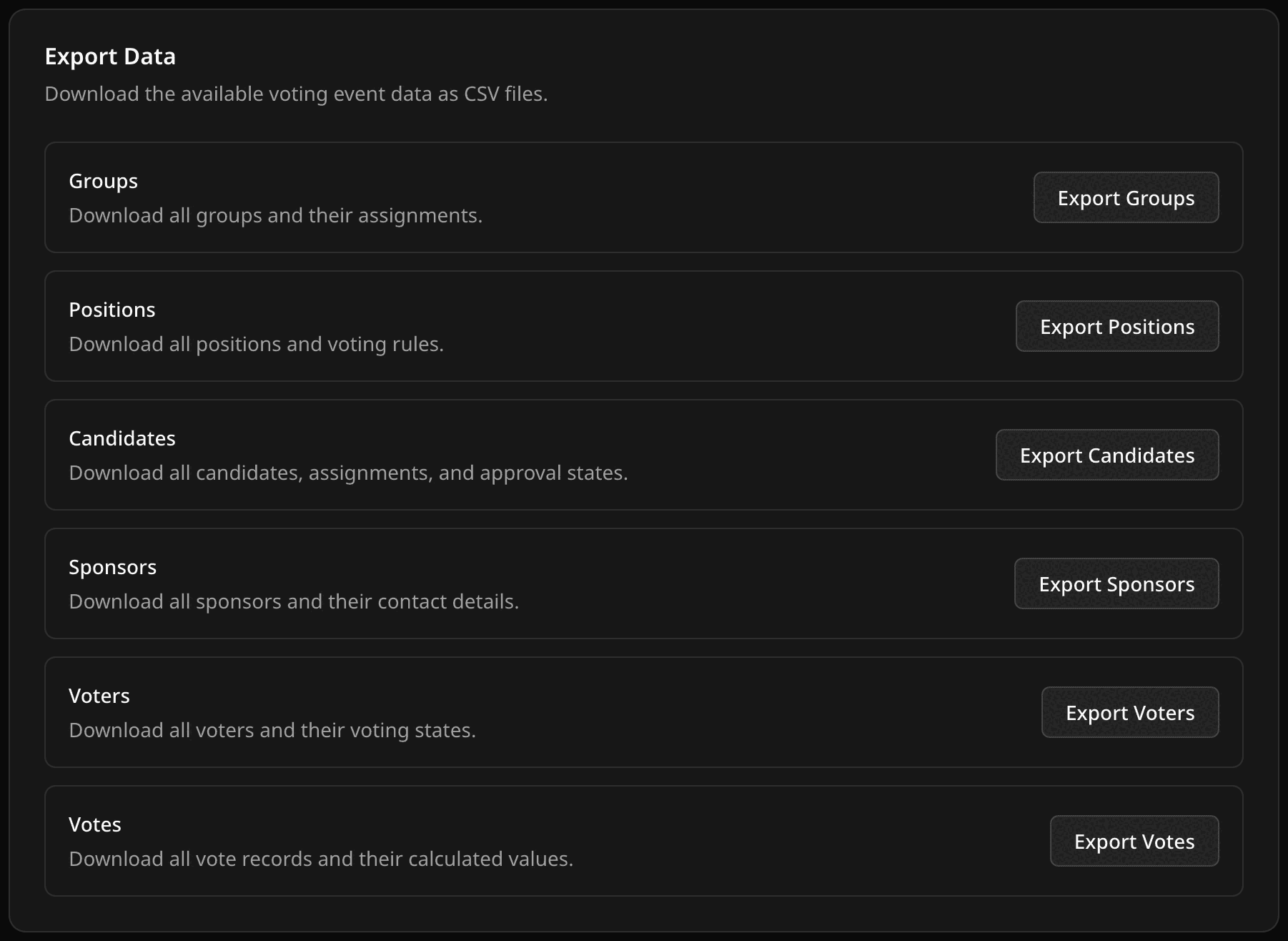
Large voter or vote exports do not download in the browser. Pepvote emails you a ZIP link that works for 7 days. That email always goes to you, even when Send Emails To is set.
Something failed?
- No valid records: check the header-row setting, the mappings, and required fields. Compare with the sample file.
- Too many rows: split the file. Per-import caps are in Current limits.
- Export unavailable: your event plan does not include exports.
- No export email: check the inbox of the account you exported from. If you got an export-failed email, send its details to support.
Related help
Last updated October 16, 2026